Rules
The following example shows to create a clearance rule, add it to the technology of a library, and save it.
def creating_a_clearance_rule(library: de.Library) -> None:
    # Clearance rules specify the minimum clearance between two objects

    # NOTE: You cannot create a rule that already exists
    assert not library.tech.clearance_rules.find("Example Clearance Rule")

    # Create a clearance rule with a default clearance of 10.0
    rule = tech.rule.ClearanceRule(library, "Example Clearance Rule", 10.0)

    # Set the priority of the rule, higher priority rules will take precedence over lower priority rules
    # The numerical value of the priority must be greater than or equal to zero and is relative to other
    # rule priorities; the higher the number, the higher the priority
    rule.priority = 10

    # By default, a new rule is enabled
    assert rule.enabled

    # Rules apply to a pair of objects, the first object must match the first scope and the second object,
    # the second scope.
    # By default, the both the first and second scope are set to tech.rule.ScopeType.Default
    assert rule.first_scope == rule.second_scope == tech.rule.DefaultScope()
    # The same as
    assert rule.first_scope.scope_type == rule.second_scope.scope_type == tech.rule.ScopeType.DEFAULT

    # For this example, the first scope will refer to the my_net Net
    rule.first_scope = tech.rule.NetClassScope(["my_net"])

    # The second scope will refer to any net that is not the my_net Net
    rule.second_scope = tech.rule.DifferentNetScope()

    # By default, the rule will apply to all layers, but for this example,
    # We'll specify a few different layers and show how to set different clearances for
    # different object types

    # when viewing the result inside ADS
    # Let's apply this rule to the M3, 9, and M12 layers
    rule.layers = ["M3", "M9", "M12"]

    # The rule values are a 2D matrix of the clearance values between the object types
    # The object types are:
    # Trace
    # Pad
    # Via
    # Plane
    rule.rule_values[("Plane", "Trace")] = 25.0
    rule.rule_values[("Plane", "Pad")] = 40.0
    rule.rule_values[("Plane", "Via")] = 55.0

    # The values for the object types that are not explicitly set use the default_clearance,
    # whose initial value is set when the rule is created
    assert rule.default_clearance == 10.0

    # NOTE: The order of the object types in the tuple doesn't matter
    assert rule.rule_values[("Plane", "Trace")] == rule.rule_values[("Trace", "Plane")] == 25.0

    # Add the clearance rule to the technology and save it
    library.tech.clearance_rules.add(rule)
    library.tech.save_rules()
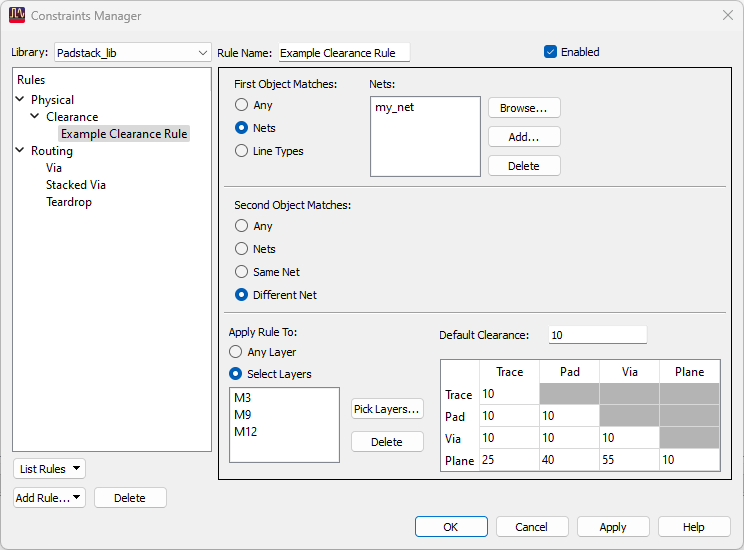
The following image shows how the clearance rule created above appears inside the constraints manager of ADS.
The following example shows how to delete a clearance rule from the technology of a library.
def deleting_a_clearance_rule(library: de.Library) -> None:
    # Ensure the clearance rule exists before trying to delete it
    if not library.tech.clearance_rules.find("Example Clearance Rule"):
        creating_a_clearance_rule(library)

    assert library.tech.clearance_rules.find("Example Clearance Rule")

    # Deleting a clearance rule is straightforward
    del library.tech.clearance_rules["Example Clearance Rule"]
    assert not library.tech.clearance_rules.find("Example Clearance Rule")
    library.tech.save_rules()
The following examples shows how to create a via rule.
def creating_a_via_rule(library: de.Library) -> None:
    lib_name = library.name
    # Create a new via rule for cond to m2 from the Example Padstack
    # NOTE: The padstack name is in the form of "library_name:padstack_name"
    via_cond_m2_rule = tech.rule.ViaRule("via_cond_m2", f"{lib_name}:Example Padstack", "cond", "M2")

    # Set the priority of the rule, higher priority rules will take precedence over lower priority rules
    # The numerical value of the priority must be greater than or equal to zero and is relative to other
    # rule priorities; the higher the number, the higher the priority
    via_cond_m2_rule.priority = 10

    # Rules are enabled by default, but no harm in being explicit
    via_cond_m2_rule.enabled = True

    assert via_cond_m2_rule.name == "via_cond_m2"
    assert via_cond_m2_rule.padstack_name == f"{lib_name}:Example Padstack"
    assert via_cond_m2_rule.has_layer_constraints
    assert via_cond_m2_rule.top_layer == "cond"
    assert via_cond_m2_rule.bottom_layer == "M2"

    # Create another rule. You don't need to specify the layers up front if you don't want to
    via_m2_m3_rule = tech.rule.ViaRule("via_m2_m3", f"{lib_name}:Example Padstack")

    # There are no constraints set
    assert not via_m2_m3_rule.has_layer_constraints
    assert via_m2_m3_rule.top_layer == ""
    assert via_m2_m3_rule.bottom_layer == ""
    # Set them here
    via_m2_m3_rule.set_layer_constraints("M2", "M3")
    assert via_m2_m3_rule.has_layer_constraints
    assert via_m2_m3_rule.top_layer == "M2"
    assert via_m2_m3_rule.bottom_layer == "M3"

    via_m2_m3_rule.priority = 10
    via_m2_m3_rule.enabled = True

    # Add the rules to the library and save them
    library.tech.via_rules.add(via_cond_m2_rule)
    library.tech.via_rules.add(via_m2_m3_rule)
    library.tech.save_rules()
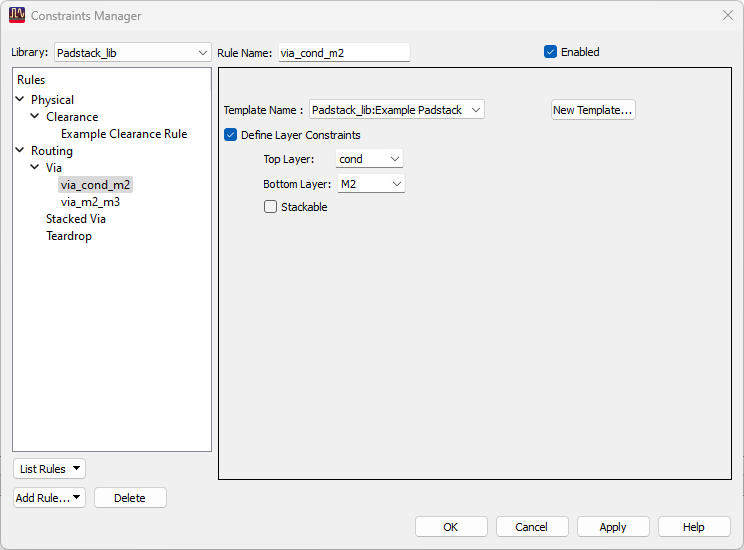
The following image shows how the via rule created above appears inside the constraints manager of ADS.
The following example shows how to create a stacked via rule.
def creating_a_stacked_via_rule(library: de.Library) -> None:
    libname = library.name
    # Ensure we have the via rules we need
    if library.tech.via_rules.find("via_cond_m2"):
        del library.tech.via_rules["via_cond_m2"]
    if library.tech.via_rules.find("via_m2_m3"):
        del library.tech.via_rules["via_m2_m3"]

    creating_a_via_rule(library)

    via_cond_m2_rule = library.tech.via_rules["via_cond_m2"]
    via_m2_m3_rule = library.tech.via_rules["via_m2_m3"]

    # Make the via rules stackable
    via_cond_m2_rule.is_stackable = True
    via_m2_m3_rule.is_stackable = True

    # Create a stacked via rule using the two via rules, via_cond_m2 and via_m2_m3
    # Rule names are in the form of "libname:rule_name"
    stacked_rule = tech.rule.StackedViaRule(
        "stacked_cond_m3", "cond", "M3", [f"{libname}:via_cond_m2", f"{libname}:via_m2_m3"]
    )
    stacked_rule.enabled = True
    library.tech.stacked_via_rules.add(stacked_rule)
    library.tech.save_rules()
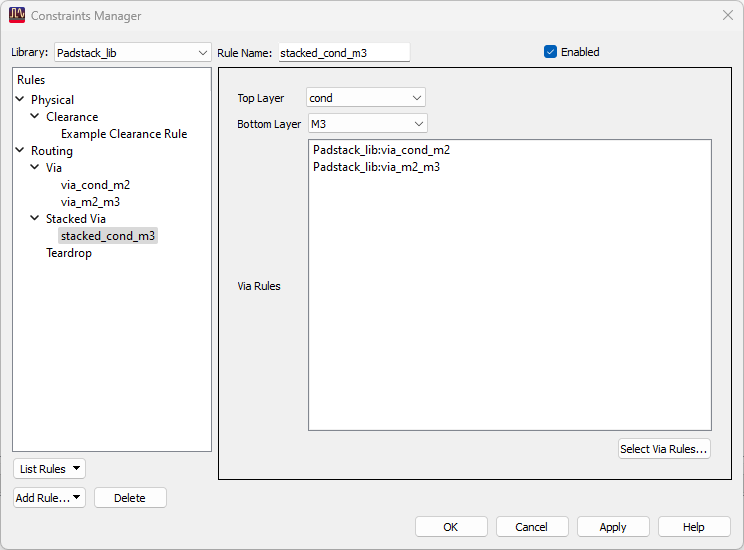
The following image shows how the padstack rule created above appears inside the constraints manager of ADS.
The following example shows how to place the vias constrained by the rules defined above.
def placing_constrained_vias(design: db_uu.Design, library: de.Library) -> None:
    libname = library.name

    if not library.tech.padstacks.find("Example Padstack"):
        # See ex_padstack.py for the padstack template used in this example
        # NOTE: If you've copied/pasted this code into the ADS Python console,
        # you may need to execute building_up_a_padstack from ex_padstack.py
        # first to create "Example Padstack".
        from . import ex_padstack

        ex_padstack.building_up_a_padstack(library)

    if not library.tech.stacked_via_rules.find("stacked_cond_m3"):
        creating_a_stacked_via_rule(library)

    cond_layer = db_uu.LayerId.create_layer_id_from_library(library, "cond")
    m2_layer = db_uu.LayerId.create_layer_id_from_library(library, "M2")
    m3_layer = db_uu.LayerId.create_layer_id_from_library(library, "M3")

    design.add_trace(cond_layer, [(0, -200), (200, -200)], 25)
    design.add_constrained_via(f"{libname}:via_cond_m2", (200, -200))
    design.add_trace(m2_layer, [(200, -200), (200, -400)], 25)
    design.add_constrained_via(f"{libname}:via_m2_m3", (200, -400))
    design.add_trace(m3_layer, [(200, -400), (0, -400)], 25)
    design.add_stacked_via(f"{libname}:stacked_cond_m3", (0, -400))
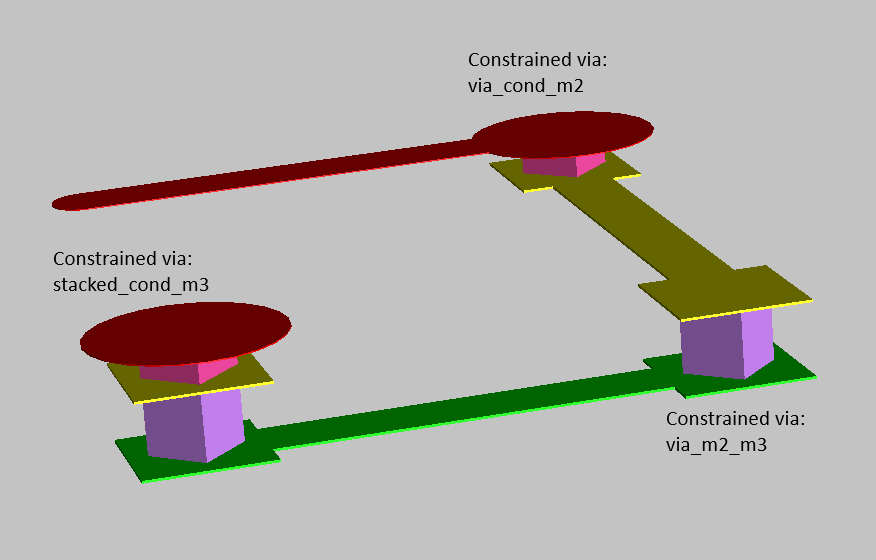
The following image shows the vias placed using the rules defined above.